

Optimizely CMS 13 and the Alloy demo site
The Alloy demo site has been around for ages, and it now works on Optimizely CMS 13. If you want a quick way to explore CMS 13 locally, Alloy is a useful starting point because it gives you a working sample site and admin UI out of the box.
Install the templates
First, install the Optimizely project templates:
dotnet new install EPiServer.TemplatesCreate a new project
Next, create a new Alloy MVC project:
dotnet new epi-alloy-mvcUpdate the NuGet packages
To make package updates easier, first install dotnet-outdated-tool:
dotnet tool install --global dotnet-outdated-toolThen update all packages to the latest available versions:
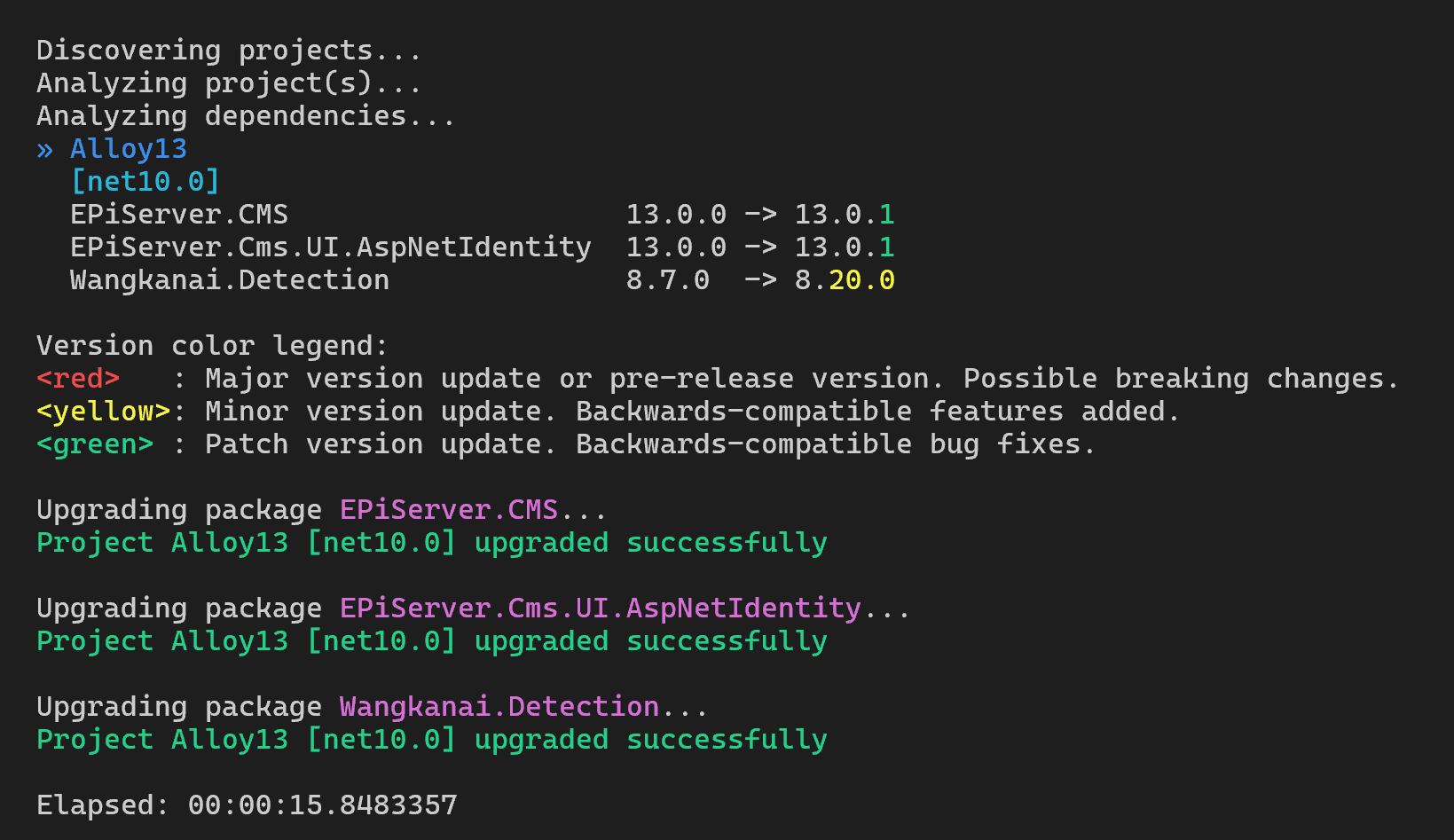
dotnet outdated -uThe output should look something like this.
Run the solution
Start the site locally:
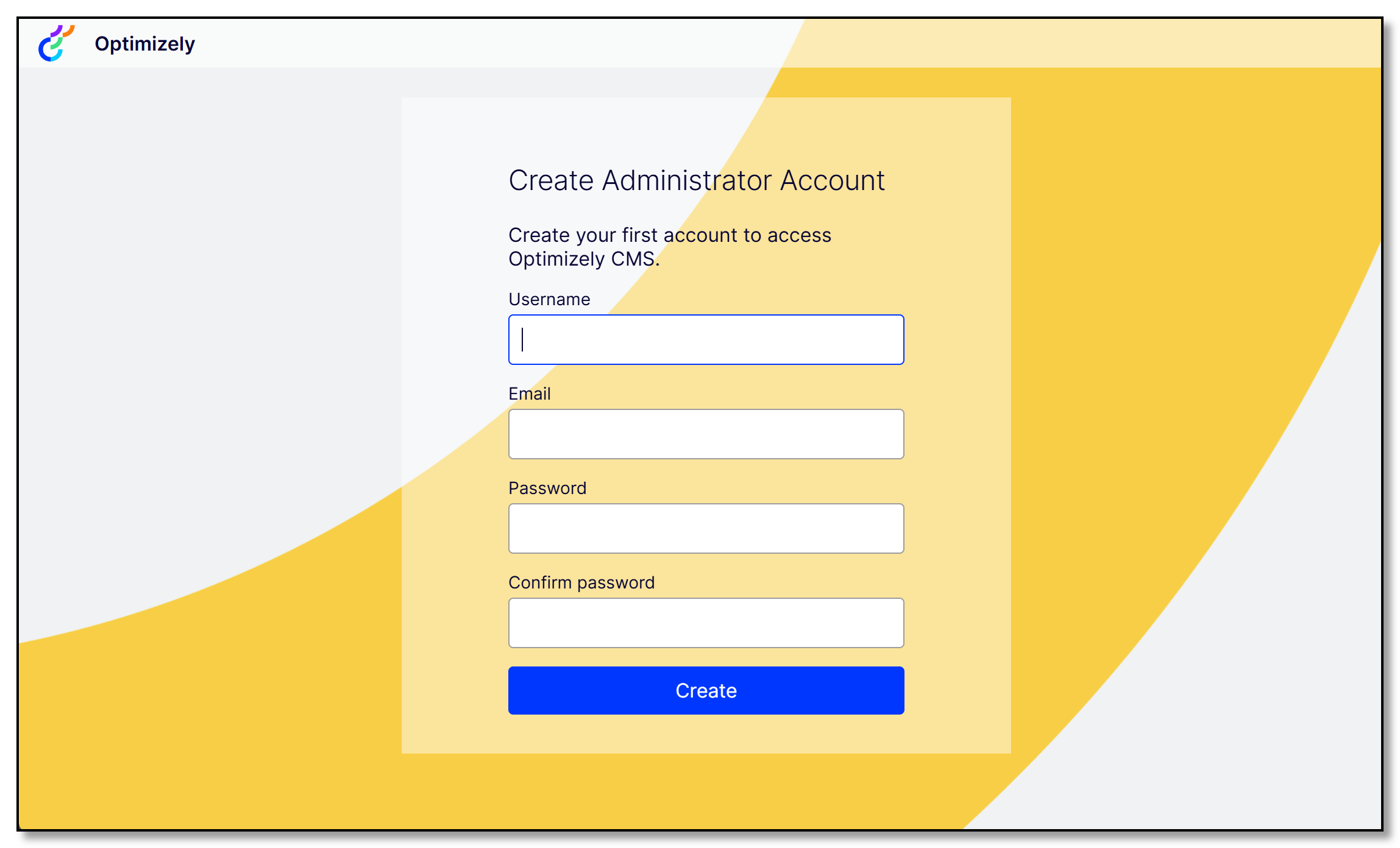
dotnet runOn first run, you’ll be prompted to create an admin account so you can sign in.
Once the site is running, take a look at the updated admin UI and browse the solution in VS Code. Alloy is still a handy way to get familiar with how an Optimizely CMS site is put together.